Notes
Updated 11 October 2026
Notes keeps what you write: a list, a plan, a thought for later. It saves as you type, works offline, and can link to your tasks, events and routines.
What Notes does
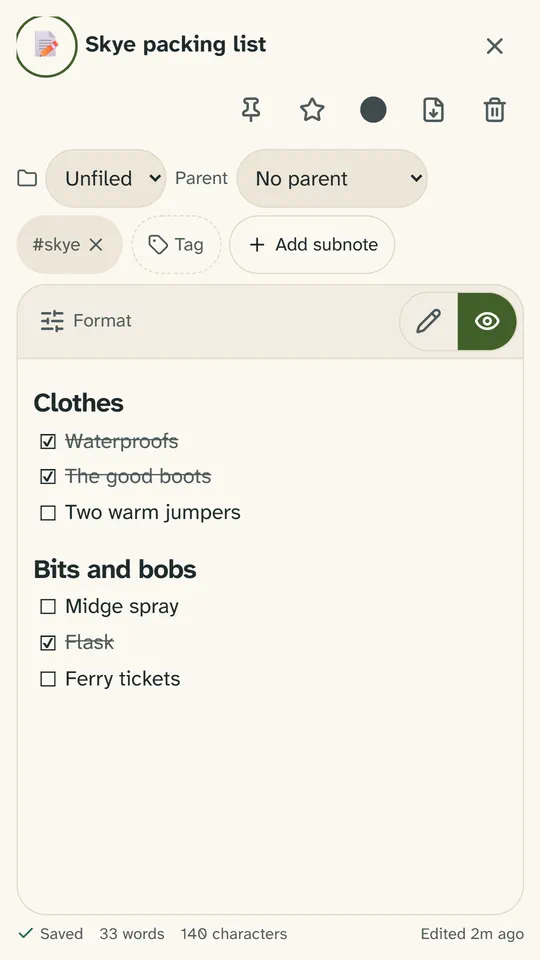
Press New note (or N on a computer) and start typing. Snod saves as you go: a moment after you stop, when you leave the note, and when you switch apps. A note without a title is called by its first line. At the top of the editor you can give it an icon and a card colour, pin it, or make it a favourite.
Formatting in a few marks
A note is written in Markdown: a few marks that turn into formatting. You never have to learn them: the toolbar writes them for you, and pressing a button again takes them off. Edit, Split and Preview, at the end of the toolbar, choose whether you see what you write, both side by side (on a wider screen), or how it looks. On a phone the formatting buttons fold away behind Format.
| Write | What you get |
|---|---|
## Packing | A heading. One, two or three # make it big, medium or small; put a space after them. |
**bold**, *italic*, ~~strike~~ | Bold, italic, and struck through. |
- Oatcakes, 1. Drive to Mallaig | A bullet list and a numbered list. Enter carries a list on; Enter on an empty item ends it. |
- [ ] Midge net | A checklist box to tick. - [x] is a ticked one. |
==Bring cash for the ferry== | A highlight. There are six colours: pick one with the highlighter button. |
> Not all those who wander are lost. | A quote. The Callout box button makes a box that stands out, in five kinds: note, tip, warning, danger and success. |
#skye | A tag: a # and a word, no space. It’s the same tag as one added with the Tag button. |
@ and two letters | A link to a task, note, event or routine: pick it from the list. |
Tables, dividing lines, code and web links are in the toolbar too. On a computer, Ctrl B, I, E and K (⌘ on a Mac) make bold, italic, code and a link. The Notes guide in the app has every mark, with Try it.
Views and order
Three views, from the buttons in the bar: Card grid, List, and Note and folder tree. Sort by Last modified, Date created, Alphabetical or Custom order, where you drag the cards into your own order. Pinned notes stay at the top in every sort. Settings → Notes sets the view and sort Notes opens with on this device.
How do I make a checklist and tick it?
Start a line with - [ ], or press Checklist in the toolbar. Enter carries the list on with a new box, and Tab moves an item in under the one above. Tick boxes on a Notes tile, or on a note’s card on the home screen; in the editor, change [ ] to [x]. A note’s card says how far through you are, like “2/5 done”.
How do I keep a checklist on my home screen?
Add a Notes tile, then open its ⋯ → Tile settings, and under What this tile shows choose Checklist. Tick, add and remove items right there, even offline. A ticked item moves below the open ones on the tile only: the note keeps your order. Single note shows one whole note instead, and Notes feed your recent notes as cards.
How do I link a task or an event?
Type @ and two letters of a task, a note, an event or a routine, then pick it. It shows as a chip with its name, and pressing the chip opens it. The @ button in the toolbar starts a link too.
How do I organise my notes?
New folder, beside Folders in the sidebar, makes a folder; a folder’s ⋯ makes a sub-folder inside it. File a note by dragging its card onto a folder (with a mouse), or with the folder box at the top of the editor. On a phone the sidebar opens from the Folders and tags button.
Tags work across folders. Write a #word in a note, or press Tag at the top of the editor. Press a tag in the sidebar to see only its notes, and a second tag to narrow it further. Search notes, at the top of Notes, looks in titles, text and tags.
Archive puts a note out of the way, and Restore from archive brings it back. Delete has Undo.
How do I save a note as a file?
Export, at the top of the editor: Markdown (.md), Plain text (.txt), or PDF (print), which opens the print window where you can save it as a PDF. To export everything at once, see Your data.