Routines
Updated 10 October 2026
Routines keeps the things you do again and again: a workout, a list of chores, a few quiet minutes. Build a routine once, then run it step by step.
How Routines works
Each thing you do is an activity, and a routine is a list of activities you run together. Every activity has one of four types:
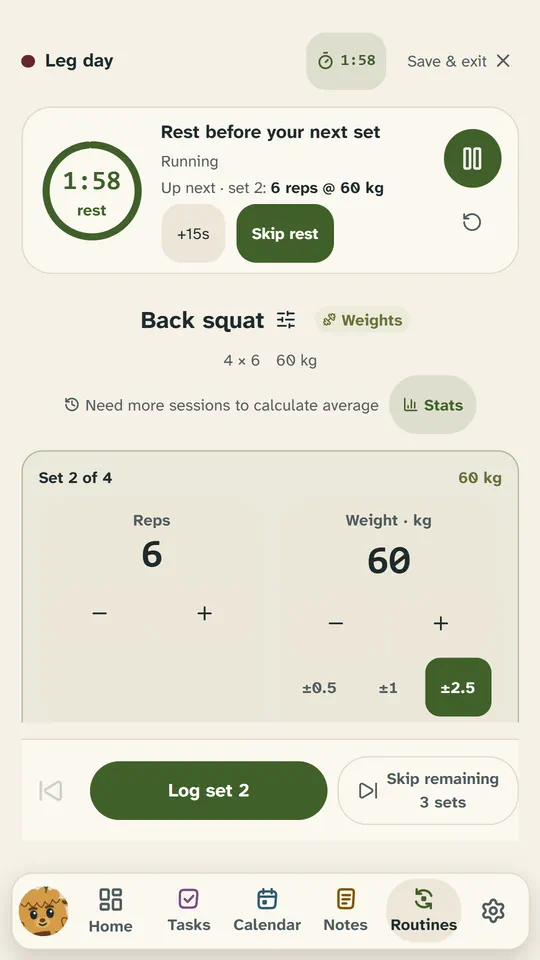
- Weights: sets, reps, a load and rest, logged set by set.
- Distance: how far and how fast: a run, a ride, a swim.
- Time: rounds of work and rest, or just a time limit: a plank, a stretch, a few minutes of breathing.
- Tick: just a title and a tick: water the plants, take the bins out.
Snod guesses the type from the name, and one press changes it. An activity’s settings (its sets, reps, distance or time) are shared by every routine that uses it, so a change shows in all of them.
A quick start
Routines has no one-line add like Tasks and Calendar. The quickest start is an idea: in the app, press Routines’ Help button and open Ideas. Try it makes a whole routine in one step, with Undo: a Sunday reset, leg day at the gym, a calm few minutes, a morning routine at 07:00, or running.
Views
Two tabs are always there: Routines (your routines) and Activities (your library). Overview (today’s progress, what’s scheduled and your week) and History (every session) are one switch each in Settings → Routines → General.
How do I build a routine?
Press New routine, give it a name, then Create routine. Add activity lists your library, with a search; type a name that isn’t there and it’s added to this routine and your library at once. Drag an activity’s handle to change the order, and ✕ takes it out (Undo puts it back).
Choose how it runs: In order steps through one activity at a time, for a workout; Any order puts them all on one board to tick off however you like, for chores. The clock beside a routine is its estimate: its steps’ times added up.
How do I run a routine?
Press Start. Each activity asks for what it needs:
- Weights: count the reps, set the weight, then Log set. The rest timer starts by itself.
- Distance: Log distance, and the pace is worked out for you.
- Time: a time limit counts down, and in an In order routine it starts the next activity by itself.
- Tick: Mark done.
Finish saves the session to your history, with Undo. Save & exit pauses it and keeps your progress on this device for later. Each set can also say how it felt: Easy, Steady, Hard, To failure or Missed a rep. That’s optional, and it helps the charts compare your sessions.
How do I schedule a routine and get reminded?
A new routine is on demand: you start it when you like. In the routine, Repeats sets Daily, Weekly, Fortnightly, Monthly, Every 2 months or Every N days, and Time of day sets when. A scheduled routine shows on its days in Routines, on the Calendar and on a Routines tile.
For a reminder at its time, switch on Routine reminders in Settings → Routines → Reminders: it starts off. Each routine can then switch its own off with Remind me at this time.
How do I fix a session?
With History switched on: Edit session corrects a measurement, the date or the time; Add session adds one you missed, like yesterday’s run; and Delete session (press it twice) deletes one, with Undo.
How do I carry on with a workout on another device?
Your routines and history are on all your devices, but a workout in progress stays on the device you started it on. To move it: Save & exit, then Upload progress in Settings → Routines → Data. On the other device, press Refresh there, then Restore on this device. This part needs a connection; the rest of Routines works offline.
Can a routine become tasks?
Yes. Send to Tasks, on a routine’s page or in its ⋯ menu, copies it into Tasks as one project, its activities as steps, due on its next scheduled day. It’s a copy: ticking the tasks off logs nothing in Routines.