Tasks
Updated 11 October 2026
Tasks keeps everything you mean to do. Write a task in one line and Snod files it, dates it and ranks it as you type.
What Tasks does
Lists, due dates, priorities, projects with steps, and repeats. Tick the circle when a task is done: a green tick, and a moment later it leaves the list. Press it again in that moment to take it back.
Filters → Done shows finished tasks again, and ticking one there brings it back. A repeating task doesn’t leave: it moves on to its next date.
Write it in one line
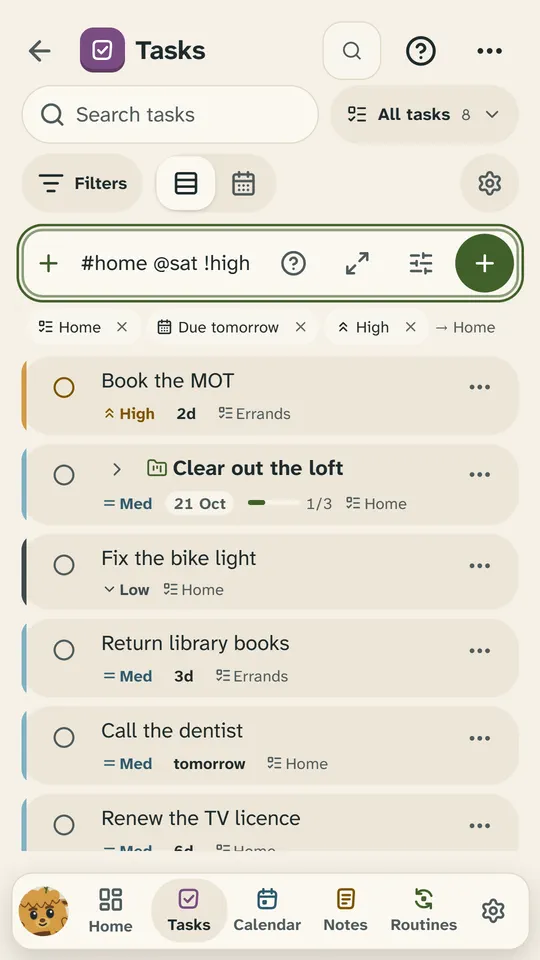
Type a task in the quick-add bar at the top and press Enter. Each piece of the line turns into a chip under the bar as Snod understands it. For example:
Call the dentist @fri !highis due on Friday, with high priority.Pay council tax @fri #admin !highalso files it in your Admin list. No such list yet? Snod makes it, with the task in it.
| Write | What it does |
|---|---|
#admin | Puts it in that list. The start of a name is enough: #adm finds Admin. A name that isn’t a list yet makes one. #inbox puts it in the Inbox, and # with a project’s name makes it one of the project’s steps. |
*project | Makes it a project: a task with steps. |
@fri, @nextfri | A weekday. ‘next’ skips a week. |
@24oct, @24/10 | A date. With no year, the next one. |
@3d, @2w | In 3 days, in 2 weeks. |
@today, @tomorrow, @weekend | Today, tomorrow, or the coming Saturday. |
tomorrow, next week, by 1/11 | Plain words work too, with or without ‘due’, ‘by’ or ‘on’ in front. |
!high, !2, !h | How important: 0 expedite, 1 urgent, 2 high, 3 medium, 4 low, 5 stagnant. !asap and !someday work too. |
/work | A topic, once Topics is on. Several give a task several topics; the first is the main one. |
~quick, ~30m | How much effort, once Effort sizing is on. |
Typing # or @ opens suggestions: your lists and projects, and dates; / opens your topics once Topics is on. Changed your mind? The ✕ on a chip keeps those words in the title, so ‘Watch Friday Night Lights’ can stay a title with no date. The ? in the bar opens the whole list, with Try it.
Topics and Effort sizing start switched off. Switch them on in Settings → Tasks → General.
Views
Tasks starts as one plain list. Settings → Tasks → General switches on more, and each becomes a tab at the top:
- Overview: a landing page, in sections you choose and order.
- Board: cards in columns, by status, priority, topic or list. Drag a card to another column to change it.
- Eisenhower matrix: Do now, Schedule, Delegate and Eliminate, filled in from each task’s priority and due date.
- Stats: what’s open, what’s done, your streak, and which days you finish things.
The same page has Topics, Effort sizing and the Age counter. Start from: Basic switches every feature off and All on switches them all on. Switching a feature off hides it and deletes nothing. In the list itself, the List / Schedule switch groups your tasks by when they’re due: Overdue, Today, Next 7 days, Later, No date and Completed.
How do I make a project with steps?
Write *project in the line (Kitchen refit *project), or switch on Make this a project in the options (the sliders button in the bar) or in a task’s editor. To add a step, write # and the start of the project’s name, then pick the project from the suggestions: in Measure the walls #kitchen, the first Enter picks Kitchen refit and the second adds the step. Add a step… under the project works too.
In order numbers the steps and keeps them in that order; Any order doesn’t. The project’s ⋯ → Open project view shows its progress and the next step. Deleting a project asks first: delete the steps too, or keep them as separate tasks.
How do I make a task repeat?
Open the options (the sliders button in the bar) or the task’s editor, and choose a repeat. Ticking a repeating task moves it on to its next date instead of finishing it. A repeating project’s ticked steps open again with it, and the toast’s Undo ticks them again.
How do I get a deleted task back?
Deleting shows Undo for a few seconds. Missed it? The home screen’s ⋯ → Activity history keeps your recent changes, each with Undo.
To delete: on a phone, swipe a task left and press Delete; on a computer, hover over it for Delete. Everywhere, a task’s ⋯ (or a right-click) has Delete too.
How do I put my tasks on the home screen?
Add a Tasks tile with + at the top of the home screen. Its ⋯ → Tile settings choose what it shows: your tasks (a list, a due date or a topic, in the order you choose), one project, or the Matrix, Board or Stats when they’re on. Press a task’s title on the tile for its card, where you can tick it or Reschedule it to Today, Tomorrow or Next week.
With the other apps
- Calendar: tasks with a due date show on their day, and overdue ones on today.
- Notes: type @ in a note to link a task; pressing the link opens it.
- Focus timer: pick a task for a round, and Mark done at the end ticks it off.
- Routines: Send to Tasks copies a routine into Tasks as a project.